
Watercolor AI Tattoo Generator: Design Paint-Splash Tattoos
How a watercolor AI tattoo generator renders soft color bleeds, splatters, and gradient washes — what the AI handles well, where a skilled artist’s technique still matters, and how to prompt it for results that hold up on skin.

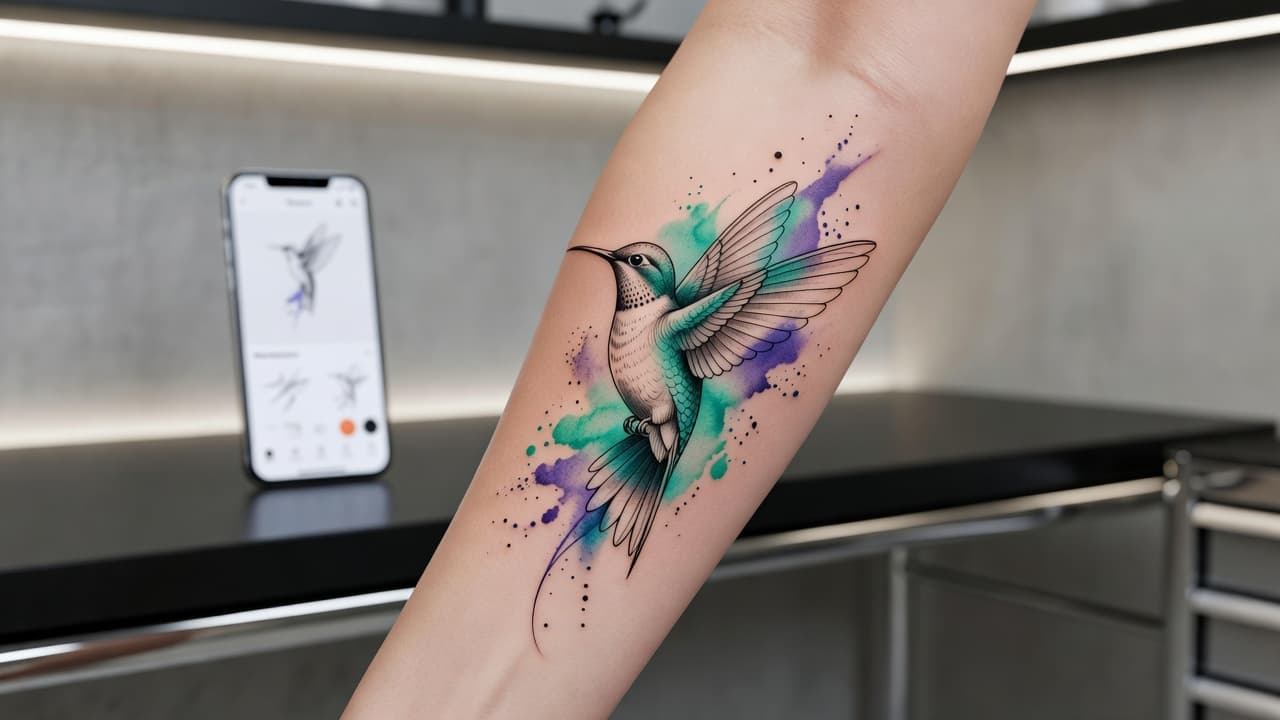
Watercolor tattoos throw out the rulebook that most other styles follow — no bold black outline holding everything in place, just soft color bleeds, splatters, and gradients that look like paint was dropped straight onto skin. A watercolor AI tattoo generator lets you explore that loose, painterly effect before committing to it: describe a splash of color behind a fine-line subject, or a soft gradient bleeding outward from a bird or flower, and see it rendered in seconds instead of guessing how the colors will actually blend.
In short: a watercolor AI tattoo generator is an AI tattoo tool set to the watercolor aesthetic — soft color bleeds, splatter effects, and gradient washes layered around a subject, usually paired with a thin linework outline for structure. You describe your idea, choose your color palette, and the AI produces a paint-like composition you can refine and preview on your body before booking a session. This guide covers how these generators render the watercolor look, where AI is strong and where it needs a skilled artist's help, and how to prompt one for designs that actually hold up once they're tattooed.
What Is Watercolor Tattoo Style?
Watercolor tattooing borrows its look from watercolor painting — soft, translucent color that spreads and bleeds rather than sitting inside hard edges. Instead of the flat, saturated fills used in traditional or neo-traditional work, watercolor tattoos use gradients, splatters, and color that fades unevenly outward, often layered behind or around a simple black linework subject like a bird, feather, or flower.
The style emerged as tattoo artists started borrowing techniques from fine-art painting in the 2000s and 2010s, using diluted ink and freehand splatter work to mimic the way pigment behaves on wet paper. It's a departure from most classic tattoo styles, which is exactly what makes it distinctive — and also part of why prompting an AI tattoo generator for watercolor results takes a slightly different approach than prompting for bolder styles like blackwork or tribal designs. Our watercolor tattoo designs guide covers the style's history and meaning in more depth; this piece focuses specifically on generating watercolor designs with AI.
How Does a Watercolor AI Tattoo Generator Work?
An AI tattoo generator renders an image from your text description, and selecting a watercolor style tells the model to favor soft gradients, color bleed, and splatter texture instead of the solid fills or bold outlines you'd get from other prompts. The subject can be almost anything — a hummingbird, a lotus flower, a mountain range, an abstract splash — but the watercolor setting decides whether the AI renders it with hard, contained edges or lets color spread and fade the way pigment does on wet paper.
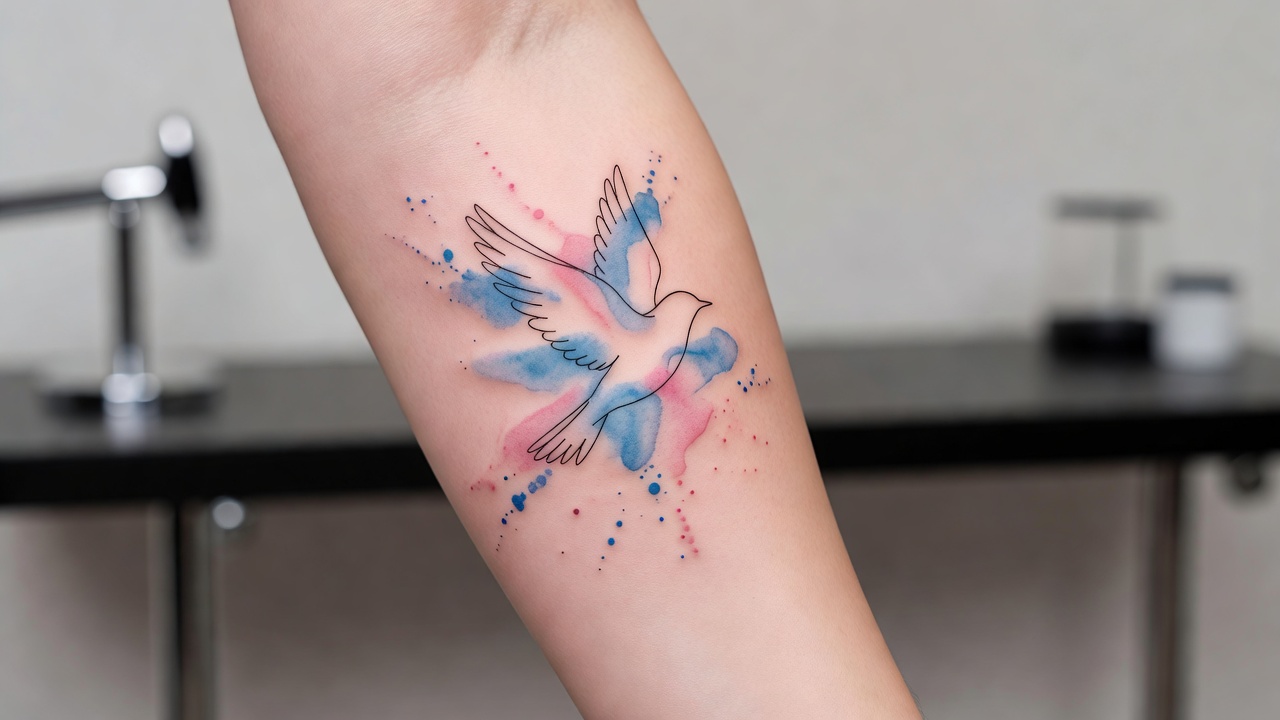
In INK, you can generate the same subject as a clean linework version and a watercolor version side by side, adjust the color palette, and compare how different amounts of splatter and bleed change the overall feel. Because watercolor depends so much on how the color behaves around the subject rather than the subject itself, small wording changes — "soft pastel wash," "vivid splatter," "monochrome watercolor bleed" — noticeably change the result, so it's worth generating a few passes before settling on one.
Is AI Actually Good at Watercolor Tattoo Designs?
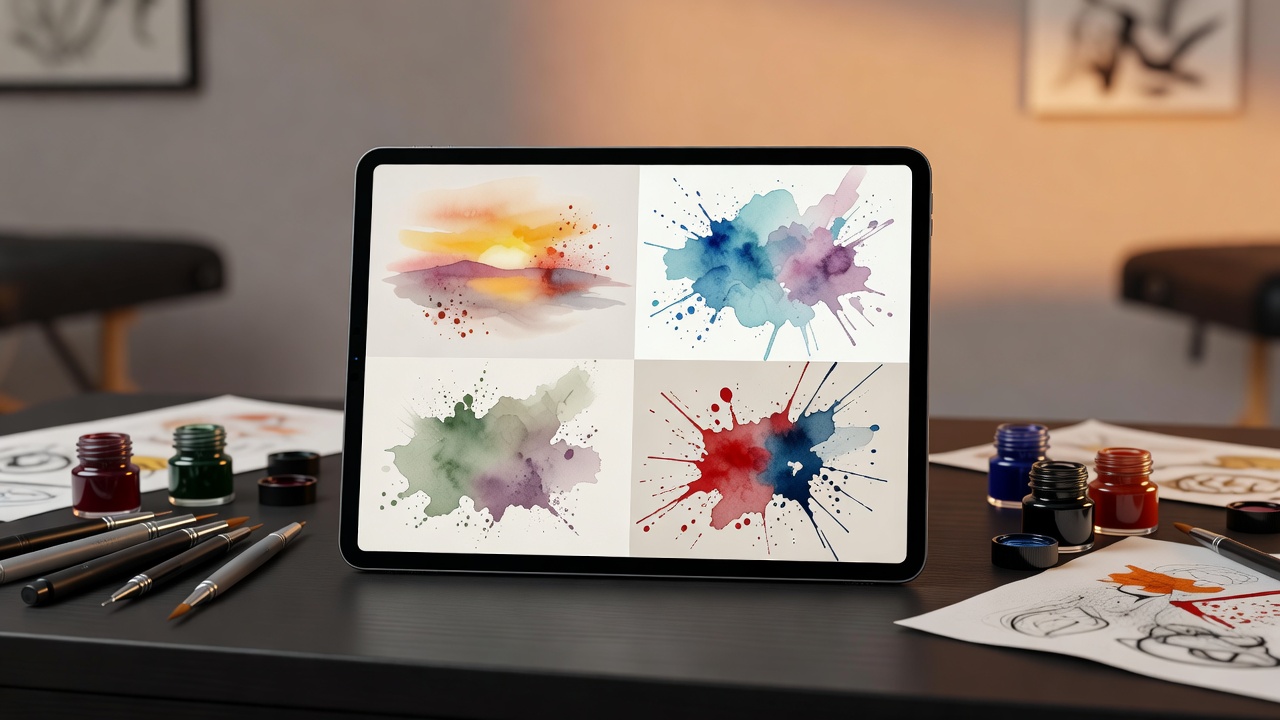
Yes, and it's one of the styles AI tends to render especially well. AI is strong at three things watercolor depends on: generating soft, natural-looking gradients, blending multiple colors smoothly without harsh transitions, and producing several splatter and bleed variations quickly so you can compare which reads best. That makes it a genuinely useful way to test color combinations — a sunset palette against a cool blue-and-purple wash, for instance — before anyone commits ink to skin.
The part that still benefits from an experienced tattoo artist is translation to skin. Watercolor is widely considered one of the trickier styles to tattoo well, because unlike a photograph or a screen render, ink on skin doesn't actually "bleed" the way wet paint does — an artist has to hand-place gradients and splatter dots so they read as soft and organic while still holding their shape and color over years of healing and sun exposure. An AI-generated watercolor design gives your artist a clear reference for palette, composition, and splatter placement, but it's the artist's technique that determines whether the color still looks soft and vibrant five years later instead of blurring into a muddy smudge.
It also helps to know how watercolor compares to a more forgiving style like realism. Realism relies on precise gradients holding their exact shape; watercolor is more forgiving of imperfection by design, since some unevenness in the bleed actually reads as more authentic. That's part of why watercolor is a good style to prototype heavily with AI — you're not chasing pixel-perfect accuracy, you're chasing a feeling.
How to Prompt an AI Tattoo Generator for Watercolor Results
A few habits make the difference between a watercolor prompt that comes back soft and painterly and one that comes back looking like a flat, muddy blob:
- Pick a simple subject first. A bird, flower, feather, or small animal gives the color bleed something clean to anchor around — busy or highly detailed subjects tend to compete with the watercolor effect instead of complementing it.
- Name your palette directly. Say "warm sunset palette," "cool blue and purple wash," or "monochrome black watercolor" so the AI commits to a coherent color direction instead of guessing.
- Ask for linework plus color separately. Requesting "thin black linework with a watercolor splash background" keeps the subject readable while still getting the loose, painterly bleed around it.
- Control the splatter amount. Terms like "subtle splatter," "heavy splatter," or "soft gradient, no splatter" change how busy or minimal the final design feels.
- Generate a few variations. Produce 3–5 versions with different palettes and bleed intensity, then use an AI tattoo editor to refine your favorite rather than starting over from scratch.
Watercolor Tattoo Ideas Worth Trying
Watercolor works especially well with subjects that already suggest movement or nature. Directions worth exploring include:
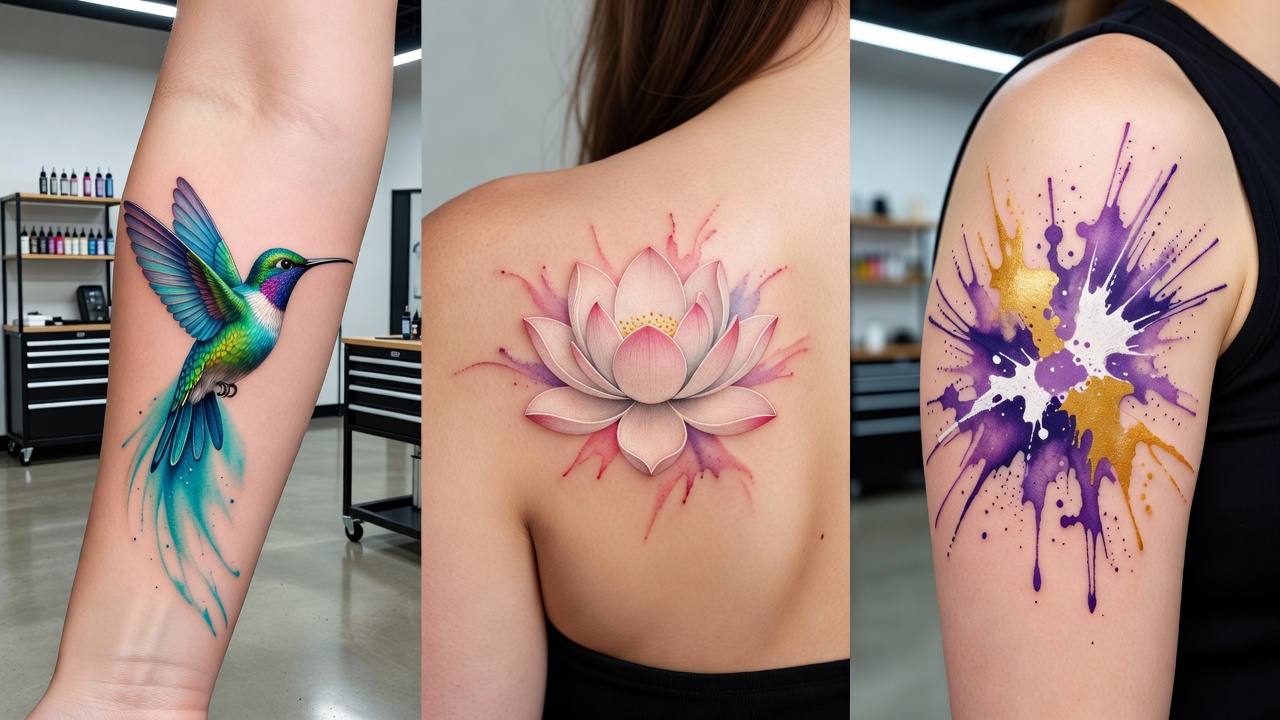
- Birds in flight. Hummingbirds, swallows, or peacock feathers rendered with a soft color trail behind them — one of the most popular watercolor subjects.
- Florals. A lotus, cherry blossom branch, or wildflower bouquet with color bleeding softly beyond the linework petals.
- Abstract splashes. A standalone paint-splash design with no representational subject at all, often placed as an accent piece near another tattoo.
- Landscapes. A mountain range, wave, or galaxy scene where a wash of color does most of the visual work instead of fine detail.
- Animals. Foxes, wolves, or elephants with a simple linework body and a splash of color radiating outward — pair this with our meaningful tattoo symbols guide if you want the subject itself to carry personal significance.
Where Do Watercolor Tattoos Look Best?
Watercolor needs open, mostly flat space for its color bleed to spread convincingly, which makes placement a bigger factor than it is for tighter, more contained styles.
- Forearm and upper arm — flat, visible space where a color wash can spread naturally without being interrupted by movement or joints.
- Shoulder blade and upper back — larger flat areas well suited to bigger watercolor pieces with room for the bleed to unfold.
- Calf and thigh — good canvas size for florals or animal designs with a wide color spread.
- Ribs and side — a striking spot for a smaller watercolor accent, though it's a higher-pain area worth planning for.
- Fingers and hands — generally a poor fit, since fine color gradients fade fastest on high-movement, high-exposure skin.
Our best tattoo placements guide breaks down pain levels and visibility for every area of the body, and if this is your first piece, our first tattoo guide walks through what to expect before you book. Because watercolor color can fade faster than bold blackwork if it isn't cared for properly, healing matters more here than for simpler styles — the American Academy of Dermatology's tattoo aftercare guidance is worth reading before a colorful session, and our own tattoo aftercare guide covers what to expect during healing.
Designing Your Watercolor Tattoo with AI
Watercolor lives or dies on color, and that's exactly where designing with AI helps most before you ever sit in a chair. With INK you can describe your idea in plain language ("a hummingbird with a soft sunset watercolor trail"), test a bold splatter version against a subtle wash, or compare how different palettes would sit on a specific placement before committing to anything.
Because you can iterate freely, you can generate several passes of the same subject, compare how each handles bleed and splatter, and AR-preview the strongest option on your own skin before booking. If you want to see how different AI tools compare more broadly before choosing one, our AI tattoo generator comparison guide is a useful next stop. When you're ready, you bring your artist a precise, considered reference instead of a vague description or a single mood board image.
Choosing Your Watercolor Design
Watercolor rewards a loose, exploratory approach more than almost any other tattoo style — the goal isn't pixel-perfect precision, it's a palette and bleed pattern that feels right. Getting that groundwork sorted with AI before you sit down for a session is exactly what makes the extra prototyping step worth it.
What is a watercolor AI tattoo generator? A tool that renders soft color bleeds, splatter effects, and gradient washes in the watercolor aesthetic, based on your description.
Is AI good at watercolor designs? Yes — it handles color blending and gradients especially well, though translating the bleed to skin so it holds up over years still benefits from a skilled artist.
How do I get the best results? Pick a simple subject, name your palette directly, separate linework from color, control splatter intensity, and generate several variations to compare.
Where does it look best? Forearm, shoulder blade, upper back, calf, or thigh — anywhere flat with enough space for color to spread naturally.
Whatever palette you land on, take the time to compare a few variations and check how the bleed pattern reads before you commit. Choose your colors and placement deliberately, and you'll end up with a watercolor piece that feels intentional rather than just colorful.
Design Your Watercolor Tattoo Free
Describe your subject and palette, and AR-preview the color bleed on your body before you commit — all in INK. No sign-up needed.
Try INK Free →

Create Your Perfect Tattoo Design
Use AI to generate unique tattoo designs and preview them on your body before committing to ink.
Start Designing for FreeWritten by

Laura Schmitz
Tattoo Content Lead, INK
Laura Schmitz leads tattoo content at INK. She has spent years researching tattoo styles, symbolism and aftercare, and works directly with the AI tattoo generator to test how each style translates from prompt to skin — so every guide here reflects designs that are actually tattooable, not just images that look good on screen.
More about the author