
AI Tattoo Generator from Photo: Transform Any Image Into Tattoo Art
Learn how to convert any photo into a tattoo design with AI. Perfect for pet portraits, memorial tattoos, and turning meaningful images into permanent art.

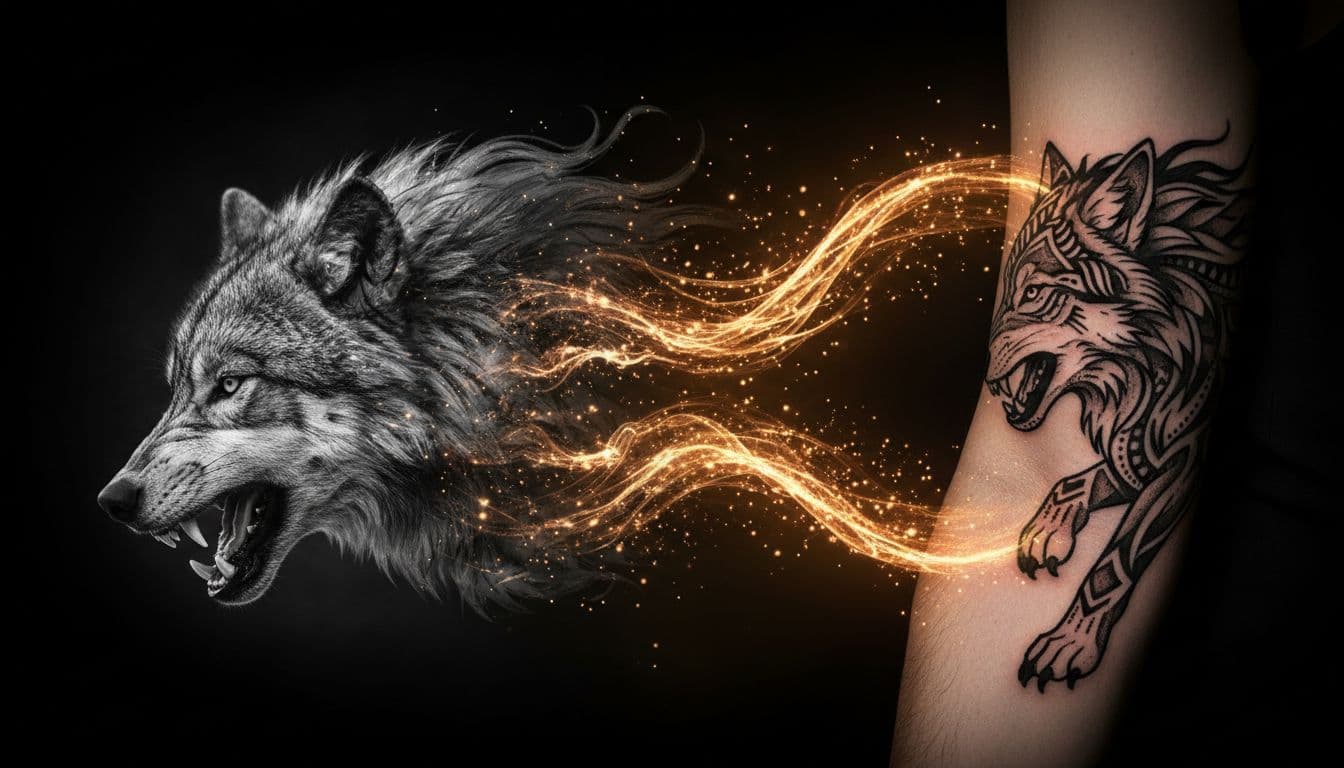
Some images are just too meaningful to stay trapped in your camera roll. Maybe it's your dog's goofy face, your grandmother's portrait, or that mountain view from the trip that changed your life. With an AI tattoo generator from photo, you can transform any image into a custom tattoo design that captures what matters most to you.
I've seen people break down in tears when they see their late father's photo transformed into a beautiful memorial tattoo design. That's the power of this technology—it's not just about creating cool art, it's about making your memories permanent in the most personal way possible.
Why Transform Photos into Tattoos?
Not every tattoo idea starts with a sketch. Sometimes, you have the perfect image already—it just needs to be translated into the language of tattooing. A photo to tattoo AI understands the difference between a photograph and a tattoo design, making adjustments that a simple filter never could.
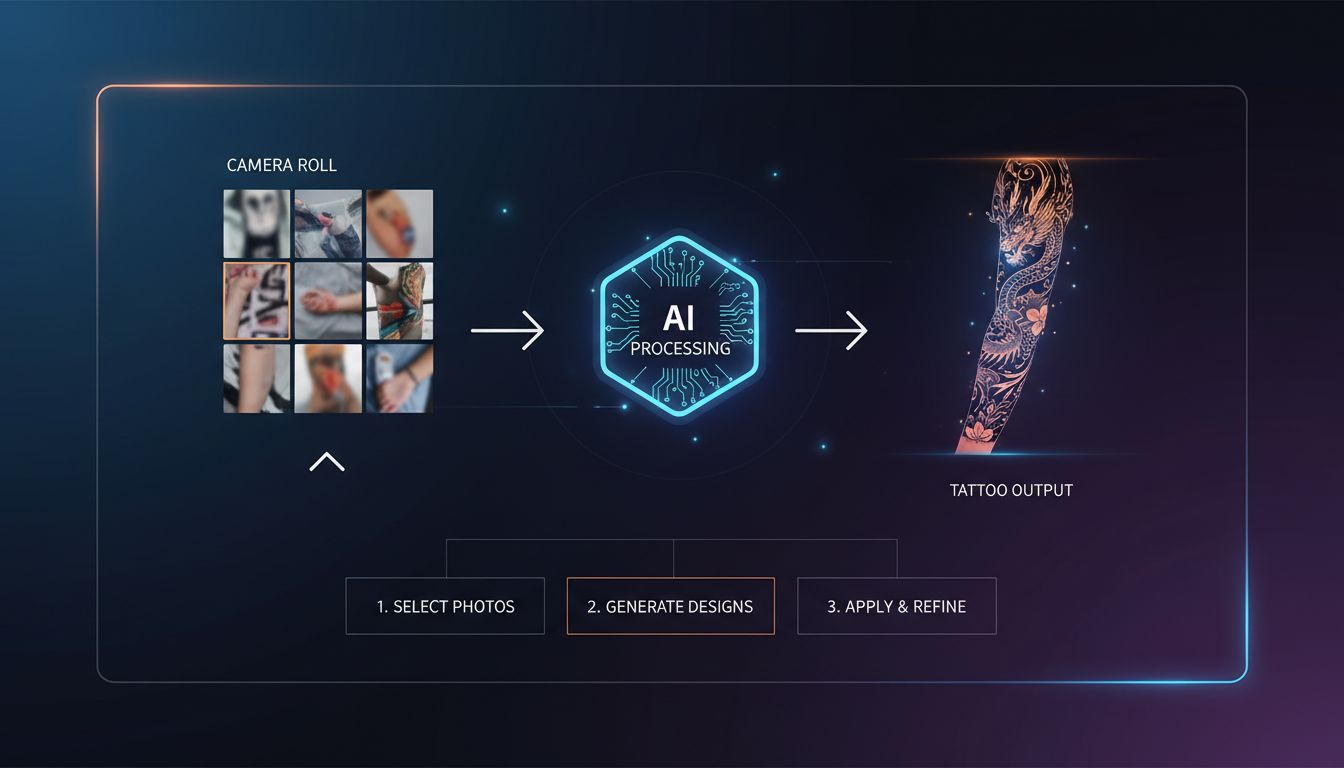
Here's what an AI photo-to-tattoo generator actually does:
- Analyzes the key elements of your photo that make it meaningful
- Simplifies complex details that wouldn't translate well to skin
- Adjusts contrast and shading for tattoo-appropriate values
- Applies your chosen tattoo style to the image
- Creates output optimized for actual tattooing
The result isn't just your photo run through an Instagram filter. It's a genuine reinterpretation of your image as tattoo art—something a skilled tattoo artist could actually execute on your skin.
What Types of Photos Work Best
Not all photos make great tattoo source material—but you might be surprised by what works. Here's a breakdown of what to look for:
High-Contrast Images
Photos with clear distinction between light and dark areas translate beautifully. Think silhouettes, dramatic lighting, or images with strong shadows. The AI has clear information to work with.
Clear Subject Focus
Images where the main subject is obvious work better than busy, cluttered compositions. A portrait with a blurred background will produce better results than a crowded group photo.
High Resolution
The better quality your source photo, the more detail the AI can extract. Blurry, pixelated, or low-resolution images give the AI less to work with.
Photos That Work Well:
- Close-up portraits of people or pets
- Landscape silhouettes (mountains, trees, cityscapes)
- Single objects with clean backgrounds
- Black and white photographs
- Professional photography with good lighting
Photos That May Struggle:
- Very busy compositions with multiple focal points
- Extremely dark or overexposed images
- Blurry or motion-blurred photos
- Images where the subject blends into the background
- Small objects meant to become large tattoos
How to Prepare Your Photo for Best Results
A little preparation goes a long way. Before uploading your photo to an AI tattoo generator from photo tool, consider these tweaks:
Crop to Focus
Remove distracting background elements by cropping tightly around your subject. The AI performs better when it's clear what the focus should be.
Adjust Brightness and Contrast
If your photo is too dark or too washed out, use your phone's basic editing tools to balance it. You don't need perfection—just reasonable clarity.
Consider Black and White
If you want a black and grey tattoo, converting your photo to black and white first can help you visualize how it will translate. The AI can work with color photos too, but this helps you see the tonal range.
Remove Unwanted Elements
If there's something in the background you don't want in your tattoo, crop it out or use a basic editing app to remove it before uploading.
Uploading a photo of a person raises a fair question about where that image goes. Are AI tattoo generators safe? answers it directly, including what to check in any app's privacy policy before you upload someone else's face.
Portrait to Tattoo: Memorializing Loved Ones
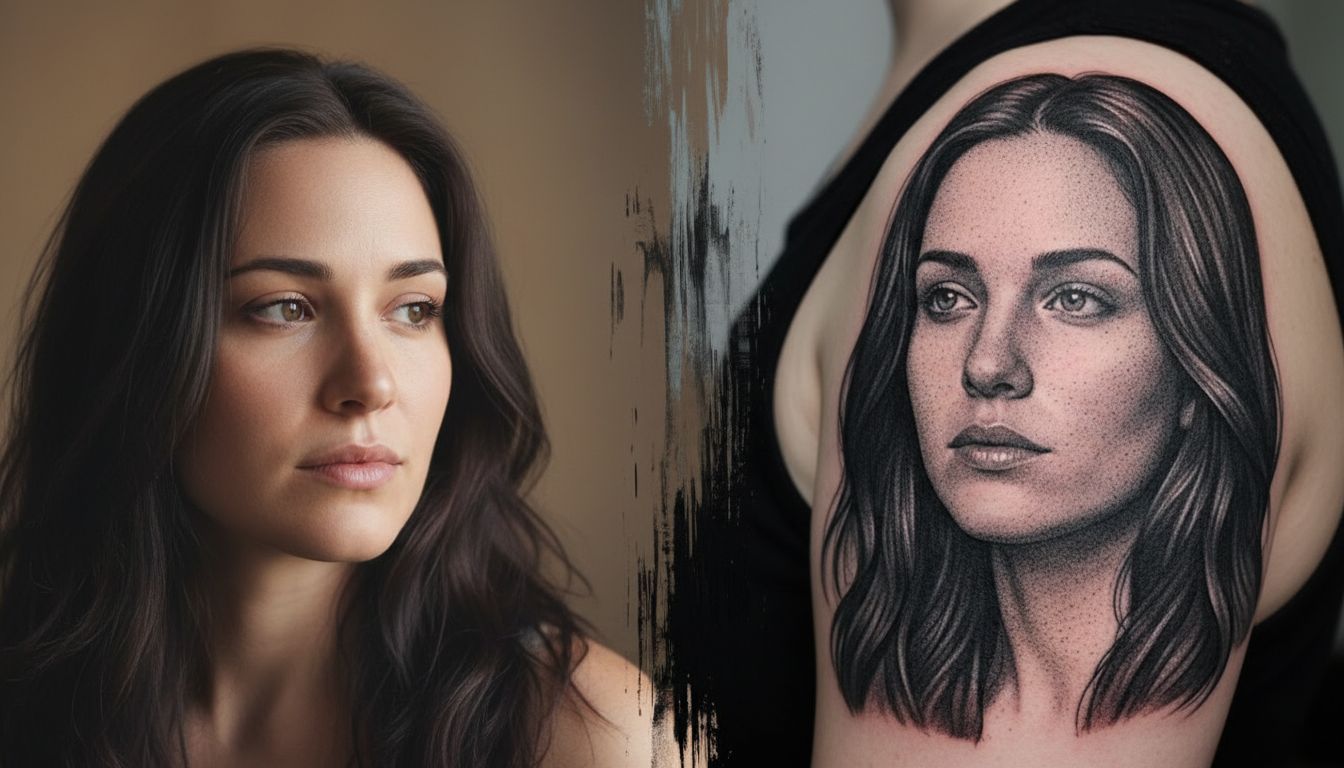
Memorial portrait tattoos are among the most emotionally significant tattoos anyone gets. They're also among the most technically challenging—which is exactly why AI photo-to-tattoo tools are so valuable here.
Here's how to approach memorial portrait tattoos:
Choose the Right Photo
Pick a photo that captures the person's essence—their characteristic expression, a genuine smile, the way they really looked. Avoid overly posed or formal photos unless that represents who they were.
Consider the Style
Realistic portrait tattoos require highly skilled artists and don't always age well. Consider stylized interpretations: neo-traditional, illustrative, or fine line versions can be equally meaningful while being more forgiving over time.
Add Personal Elements
The AI can incorporate additional elements around the portrait: birth flowers, meaningful symbols, dates, or design elements that complement the portrait. Mention these in your prompt when generating.
Get Professional Input
Portrait tattoos are complex. Use the AI-generated design as a starting point and reference, then work with a portrait specialist artist who can refine it for your skin.
According to the Smithsonian's documentation on tattoo history, memorial tattoos have been practiced across cultures for centuries—they're among the most ancient forms of honoring those we've lost.
Pet Photos to Tattoo Designs
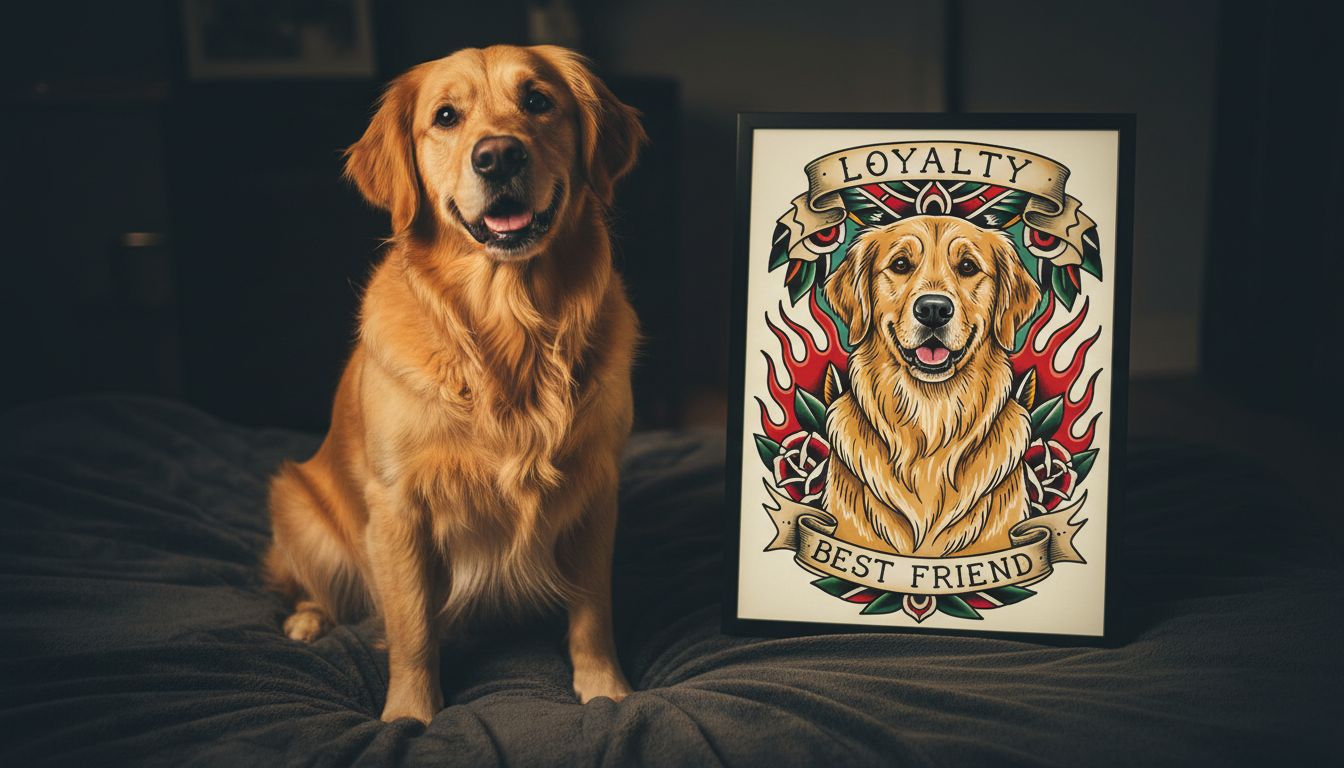
Our pets hold pieces of our hearts, and wanting to commemorate them in ink is completely natural. Pet photos are actually excellent candidates for AI tattoo from image conversion.
Why pets work so well:
- Fur texture translates beautifully to various tattoo styles
- Expressive eyes are a focal point AI handles well
- People are less attached to photorealistic perfection with pets than with human portraits
- Stylized versions (illustrative, geometric, minimalist) are widely accepted
Tips for Pet Photos:
- Close-up face photos work best
- Catch them in good lighting (natural light is ideal)
- Capture their personality—silly tongue out, alert ears, sleepy eyes
- Consider action shots for dynamic poses
Landscapes and Objects as Tattoo Art
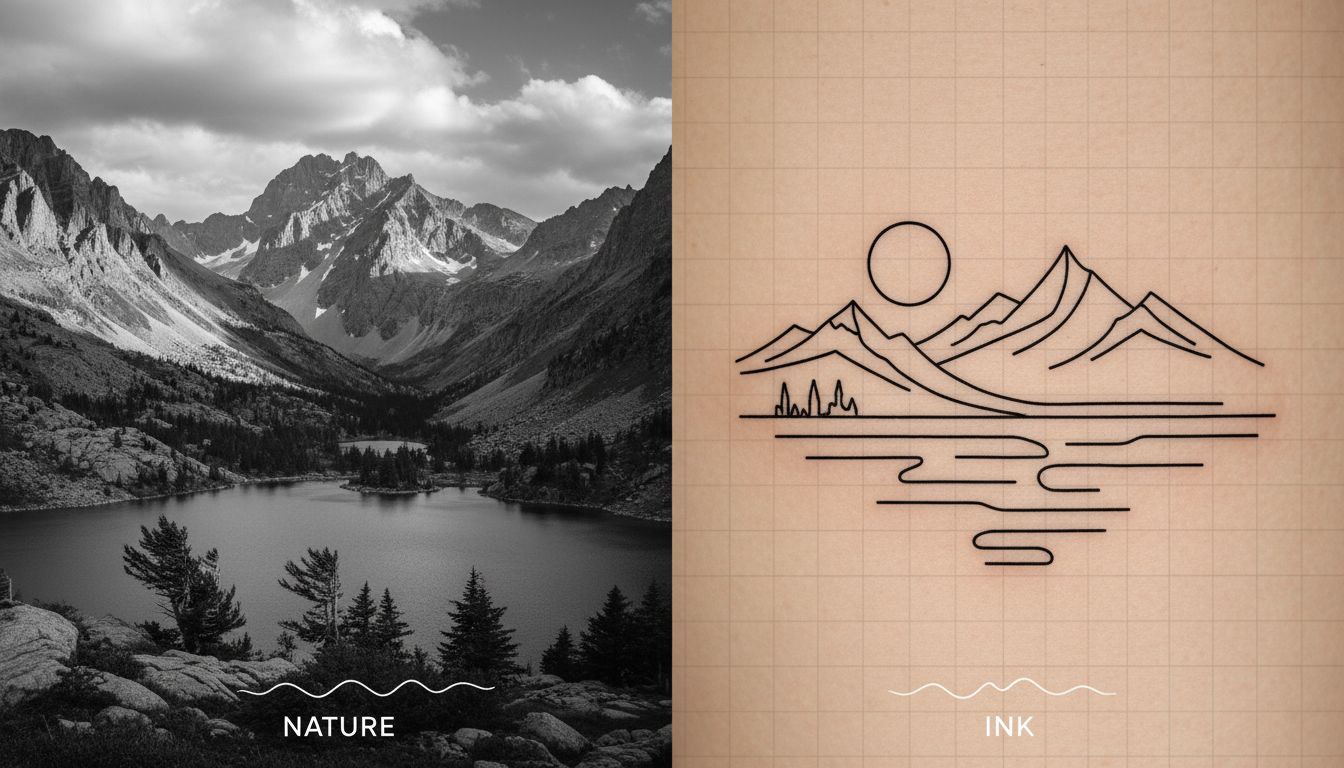
Beyond portraits, landscape photos and meaningful objects make excellent tattoo source material. That mountain you climbed, the ocean where you scattered ashes, the vintage car your dad restored—all can become permanent reminders.
Landscapes
Mountain ranges, forests, ocean scenes, and cityscapes work particularly well. The AI can interpret these in various styles: minimalist line work, detailed realism, geometric interpretation, or watercolor effects.
Architecture
Buildings with personal significance—the house you grew up in, a church, a favorite travel destination—can be stylized beautifully. Line work and geometric styles often work best for architectural subjects.
Objects
Musical instruments, vintage items, family heirlooms, flowers from a special garden—objects with personal meaning translate well. The AI can maintain recognizable details while stylizing for tattoo execution.
For landscapes specifically, National Geographic's photography demonstrates how powerful landscape imagery can be—and why people want to carry these views with them forever.
Choosing the Right Tattoo Style for Your Photo
The style you choose dramatically affects how your photo translates. Here's how different styles interact with photo sources:
Realistic/Portrait Style
Maximum detail retention, aims to look like a photograph on skin. Best for portraits where likeness matters. Requires skilled artists and ages more visibly.
Illustrative
Artistic interpretation with clear lines and stylized shading. Great balance of recognizability and artistic expression. Ages well.
Minimalist/Fine Line
Distills the image to essential elements. Perfect for landscapes, simple subjects, and those who prefer subtle tattoos. Very clean aesthetic.
Geometric
Reinterprets the subject through geometric shapes. Striking and modern. Works particularly well with animal subjects.
Watercolor
Adds painterly color splashes around or within the design. Soft, artistic feel. Beautiful for florals and nature subjects.
Blackwork
Bold black interpretation with strong contrast. Makes a powerful statement. Works well for silhouettes and high-contrast source images.
Not sure which style suits your photo? Explore our complete tattoo styles guide to see how each style looks in practice.
From Photo to Real Tattoo: The Process
Generating a design is just the beginning. Here's the full journey from photograph to finished tattoo:
1. Select Your Best Photo
Choose an image with good quality, clear subject, and emotional significance. This is worth spending time on.
2. Generate Multiple Variations
Try different styles—you might be surprised which one resonates. Generate at least 5-10 versions before settling on a direction.
3. Preview on Your Body
Use INK's try-on feature to see how the design looks at different sizes and placements. A portrait that works on your bicep might not fit your forearm.
4. Consult a Specialist
For portraits especially, find an artist who specializes in this work. Share your AI-generated design as a reference—it's excellent for communicating your vision.
5. Collaborate on Refinements
Your artist may suggest changes for better tattoo execution. Trust their expertise while ensuring the essence of your original image is preserved.
6. Consider Size and Placement
More detail requires more space. A tiny portrait loses features; a large one on your back preserves everything. Discuss sizing with your artist.
Prefer starting with text instead of photos? Learn about generating tattoos from text descriptions.
Common Issues and How to Fix Them
Sometimes the AI output isn't quite right. Here's how to troubleshoot common problems:
Issue: Output doesn't look like my photo
Solution: Try a higher resolution source image, crop tighter on the subject, or adjust contrast in your photo before uploading.
Issue: Too much detail making it cluttered
Solution: Choose a more stylized style like minimalist or illustrative rather than realistic. Sometimes less is more.
Issue: Face doesn't look right in portrait
Solution: Portraits are challenging. Try different angles, use a well-lit front-facing photo, or consider a more stylized interpretation.
Issue: Colors aren't translating well
Solution: Try black and grey first to see the composition, then add color. Or embrace a black and grey design—they're classic for a reason.
Ready to Transform Your Photos Into Art?
That meaningful photo deserves to become more than a file on your phone. Upload it now and see what AI can create. Free to try—no sign up required.
Upload Your Photo Now →

Create Your Perfect Tattoo Design
Use AI to generate unique tattoo designs and preview them on your body before committing to ink.
Start Designing for FreeWritten by
Laura Schmitz
Tattoo Content Lead, INK
Laura Schmitz leads tattoo content at INK. She has spent years researching tattoo styles, symbolism and aftercare, and works directly with the AI tattoo generator to test how each style translates from prompt to skin — so every guide here reflects designs that are actually tattooable, not just images that look good on screen.
More about the author