
AI Tattoo Stencil Maker: Turn Any Design Into a Clean, Print-Ready Stencil
How an AI tattoo stencil maker converts any design into clean, print-ready outline linework — and how to generate, refine, print and apply a tattoo stencil that transfers crisply.

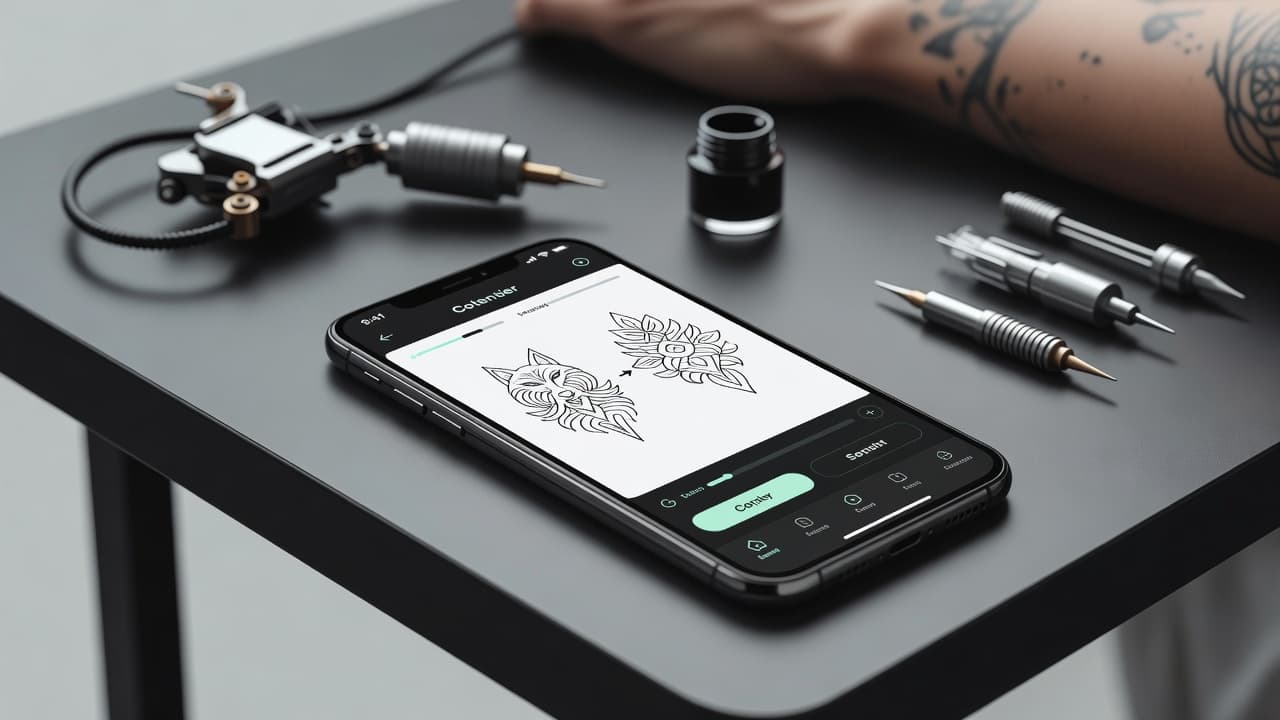
Every tattoo starts as a line on skin before it becomes a line in skin. An AI tattoo stencil maker handles that first step for you: it takes a design — a photo, a rough sketch, or artwork generated from a few words — and converts it into the clean, bold outline that an artist transfers to the body before they ever start tattooing. Get the stencil right and the tattoo almost draws itself.
In short: an AI tattoo stencil maker turns any image into print-ready outline linework. You add your design, the AI strips away color and shading to leave crisp black-and-white outlines, and you refine and export a stencil you can print, preview on your body, or hand to your artist. This guide explains what a stencil actually is, how the AI builds one, how to refine linework that transfers cleanly, and how to print and apply it without the mistakes that ruin an otherwise great design.
What Is an AI Tattoo Stencil Maker?
An AI tattoo stencil maker is a tool that turns a finished-looking design into the line drawing a tattoo artist actually works from. A stencil in tattooing is the outline of your design transferred onto the skin as a guide. Before any ink goes in, the artist lays down those lines so they know exactly where every element sits. The stencil is the skeleton; the shading, color, and texture are built on top of it during the session.
The reason this deserves its own tool is that a beautiful render and a workable stencil are not the same thing. A photo or a richly shaded illustration is full of gradients, soft edges, and tiny details that simply cannot be transferred as outlines — and that would blur into a smudge within a few years even if they could. Converting to a stencil is the discipline of deciding which lines matter, making them bold and continuous, and throwing away everything that would not survive in skin. AI does that translation quickly and consistently, which is why it pairs so well with the rest of the design process.
How Does an AI Tattoo Stencil Maker Work?
The workflow is fast and entirely reversible, which is the whole appeal: you can run a design through it again and again until the linework is exactly right, and nothing is permanent until you choose to ink it. Here is the full path from idea to printable stencil.
- Add your design. Start from a photo, a hand sketch you have snapped, or artwork you generate on the spot. If you do not have an image yet, you can create one from a description first using the text-to-tattoo generator, then feed it into the stencil step.
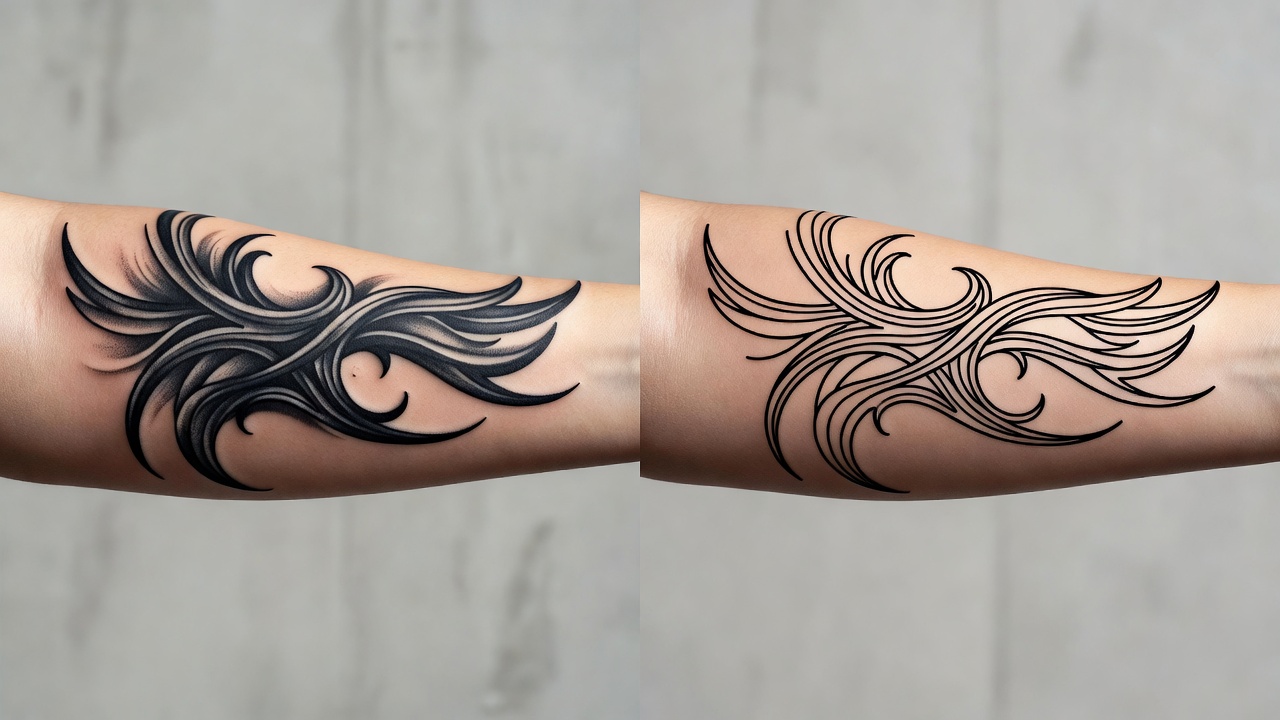
- Convert to outline linework. The AI analyzes the design, finds its defining contours, drops the color and shading, and redraws the whole thing as high-contrast black-and-white outlines with consistent weight.
- Refine the lines. This is where stencils are won or lost. Simplify cluttered areas, thicken strokes that look too fine to hold ink, and delete detail that will not read at tattoo scale. Regenerate as many times as you need.
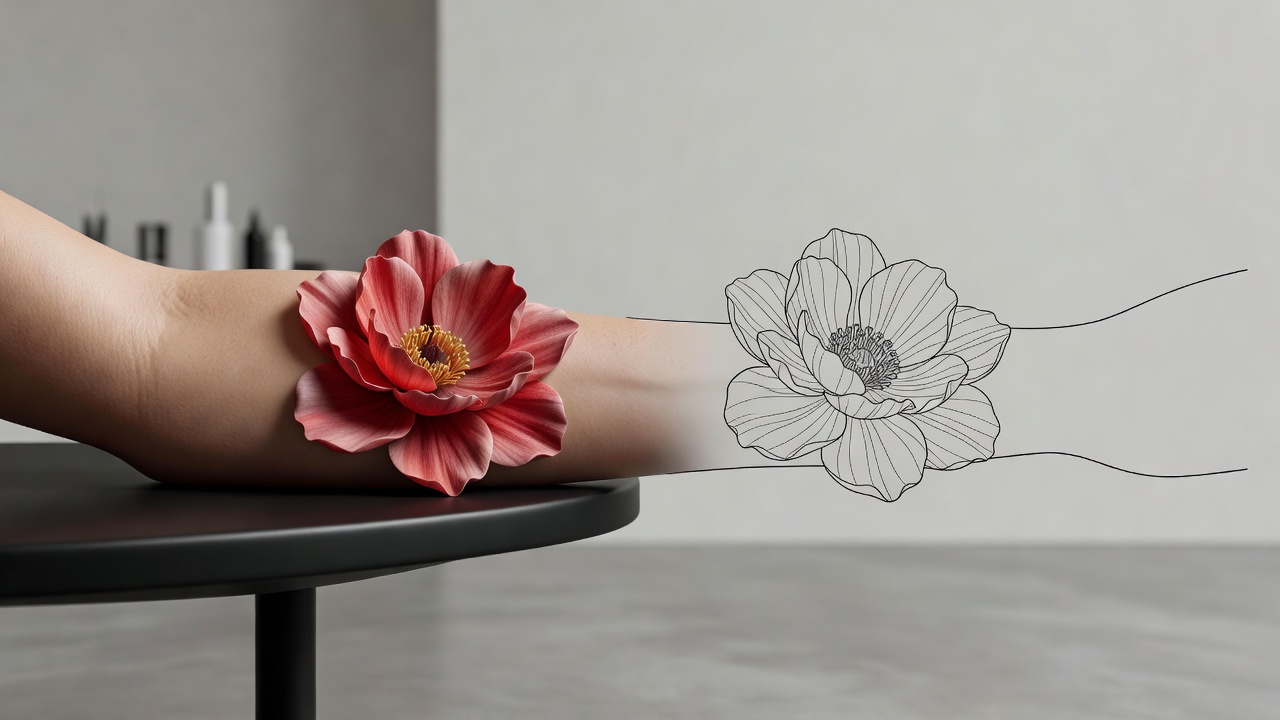
- Preview on your body. Use AR try-on to place the stencil at real size on the actual spot you are considering. Problems with scale, flow, and fit jump out instantly here.
- Export and print. Download a clean, high-resolution version and either print it to thermal transfer paper or trace it for hand transfer.
Can You Turn a Photo Into a Tattoo Stencil?
Yes — turning a photo into a stencil is one of the most common reasons people reach for this tool, and AI handles it well as long as you give it something to work with. The AI traces the main edges of the photo, simplifies the noise, and outputs an outline. A portrait, a pet, a plant, a building, or a meaningful object can all become line art this way.
The quality of the input decides the quality of the stencil. Photos with clear, well-lit subjects and strong separation between the subject and the background convert cleanly. Busy backgrounds, soft focus, and low contrast force the AI to guess, which is exactly when you lean on the refine step to clean up the result. A few quick guidelines:
- Favor strong edges. Crisp outlines in the photo become crisp lines in the stencil.
- Crop tight. Remove distracting background before converting so the AI focuses on the subject.
- Expect simplification. Fine wrinkles, individual hairs, and subtle gradients will be reduced — that is correct, not a flaw. Skin cannot hold that level of detail forever.
- Refine, then preview. Always check the converted lines at real scale before committing; what looks fine on a screen can be far too intricate at two inches wide.
Stencil Styles and Line Weight
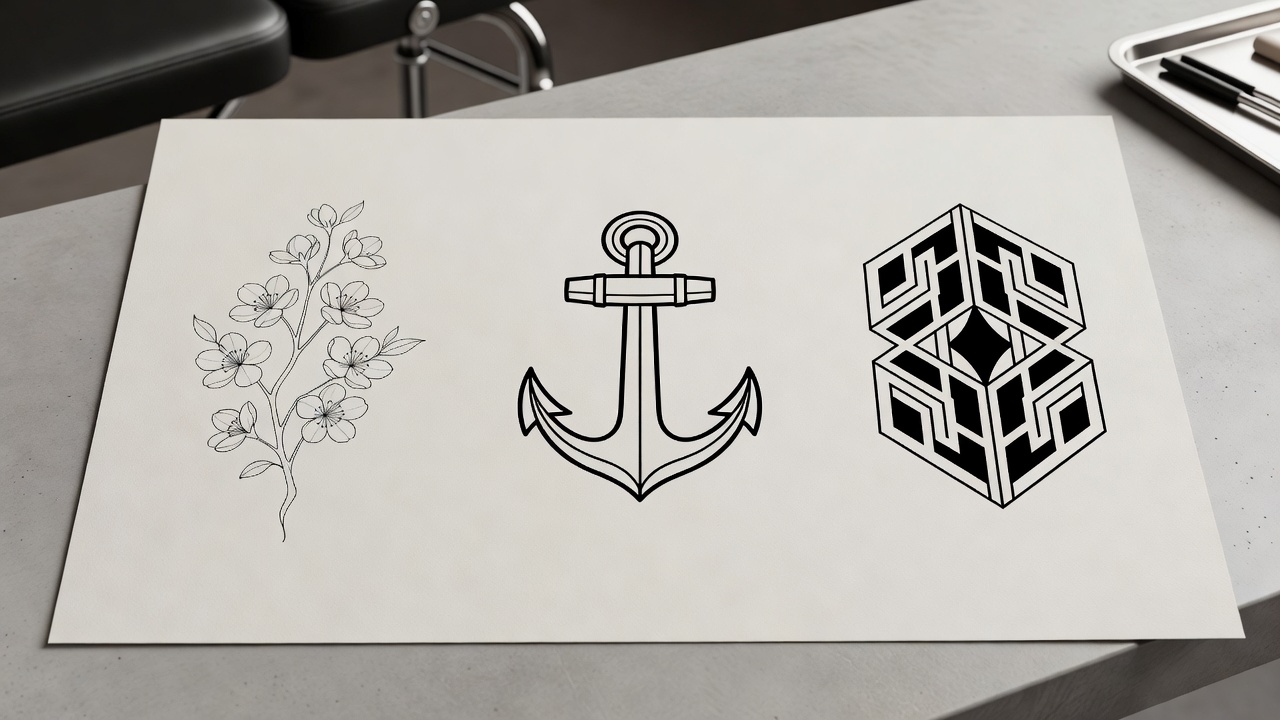
Not every stencil should look the same, because not every tattoo style relies on line the same way. Matching the stencil to the style you want is part of getting a result you will be happy with for decades.
Fine-line stencils
Delicate, single-weight outlines suit botanical, minimalist, and small designs. They demand a steady hand and clean transfer because there is no bold structure to hide imperfections — see our fine-line tattoo guide for where this style shines and where it struggles.
Bold traditional stencils
Thick, confident outlines are the backbone of traditional and neo-traditional work. These stencils are the most forgiving and the most durable: heavy lines transfer easily and age beautifully because they are built to hold ink.
Blackwork and illustrative stencils
Here the stencil maps both the outlines and the major fields that will be filled solid black, giving the artist a clear blueprint of positive and negative space.
Lettering stencils
Text needs absolutely clean, evenly spaced outlines so nothing blurs together. If words are your focus, pair this with the AI tattoo lettering generator to nail the font first, then stencil it.
How to Print and Apply an AI Tattoo Stencil
Once your linework is right, getting it onto skin is straightforward. There are two common routes, depending on the equipment available.
- Thermal transfer (the standard). Print the exported stencil onto thermal transfer (hectograph) paper using a thermal stencil printer. This produces the purple outline most artists use, ready to apply directly.
- Hand transfer. No thermal printer? Print on regular paper, then trace the design onto transfer paper by hand with a stencil pencil. It takes longer but works with no special hardware.
To apply, shave and clean the skin, then spread a thin, even layer of stencil solution or unscented deodorant over the area. Press the transfer down firmly without sliding it, hold for a moment, and peel it away slowly. Let the stencil dry fully before tattooing so the lines do not smear.
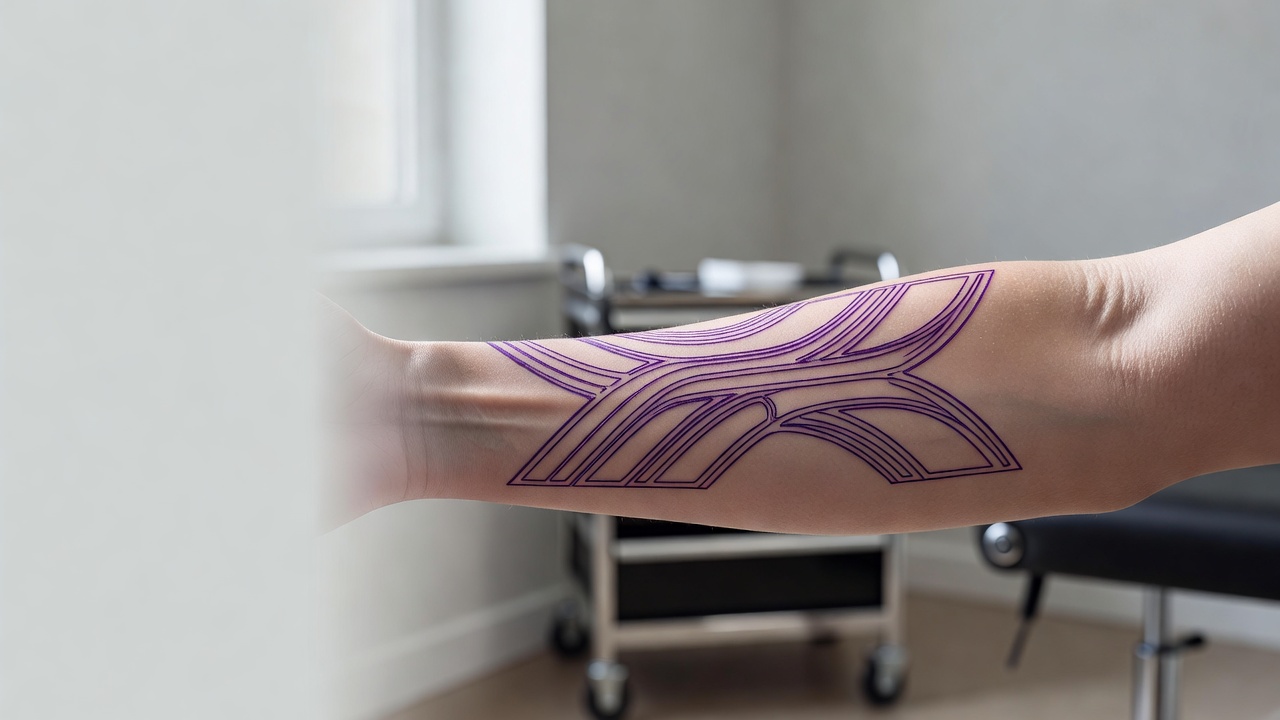
A stencil is a guide, not a guarantee. The cleaner your linework going in, the less guesswork during the session — but the skill of placing and tattooing it still belongs to a trained artist.
Common Stencil Mistakes (and How to Avoid Them)
Most disappointing stencils fail for the same handful of reasons. Knowing them in advance saves a lot of wasted transfer paper.
- Too much detail. Cramming intricate detail into a small piece guarantees a blur over time. Simplify ruthlessly and let the design breathe.
- Lines too thin or too close. Skin swells during tattooing and ink spreads slightly with age, so lines that nearly touch will merge. Leave generous spacing.
- Wrong scale. A stencil that looks balanced on screen can be far too big or small on the body. Always preview at real size before printing.
- Skipping the body preview. Flat artwork ignores how skin curves. Checking the stencil on the actual placement reveals flow problems early.
- Treating the stencil as final. The best results come from bringing clean linework to an artist and refining it together, not insisting on a fixed printout.
Professional users tend to arrive here first. AI tattoo generators for tattoo artists puts stencil-stage linework in the context of the rest of a studio workflow — flash, client mockups and cover-up drafting.
Where the Stencil Fits in the INK Workflow
Stencil-making is one piece of a single flow rather than an isolated task. In INK you can generate a design from text or a photo, convert it into clean stencil linework, refine the lines until they transfer well, preview the result on your body at real scale, and export it to take to your artist — all in one place, free, with no sign-up needed to start. If you are still finding your idea, our walkthrough on how to use an AI tattoo generator is a good companion to this guide, and first-timers will want our first tattoo guide for what happens once the stencil is on.
That end-to-end path is the point. Anyone can draw an outline; the value is being able to move from idea, to design, to a stencil that genuinely transfers, to a preview on your own skin — without losing the thread between steps or guessing how the final piece will sit.
The Final Word
The stencil is the quiet, decisive moment of any tattoo: it is where a design stops being a picture and becomes a plan for the body. An AI tattoo stencil maker gives you the room to get that plan exactly right — to convert any image into clean linework, simplify until it will age well, test it at real scale, and print something an artist can actually use. Get the lines right on paper, and the ink takes care of itself.
Make a Clean Tattoo Stencil Free
Turn any photo or design into print-ready stencil linework, refine the lines, and preview it on your body — all in INK. No sign-up needed.
Try INK Free →

Create Your Perfect Tattoo Design
Use AI to generate unique tattoo designs and preview them on your body before committing to ink.
Start Designing for FreeWritten by

Laura Schmitz
Tattoo Content Lead, INK
Laura Schmitz leads tattoo content at INK. She has spent years researching tattoo styles, symbolism and aftercare, and works directly with the AI tattoo generator to test how each style translates from prompt to skin — so every guide here reflects designs that are actually tattooable, not just images that look good on screen.
More about the author