
AI Tattoo Generator From Sketch: Turn Your Drawing Into a Tattoo
Turn a rough hand-drawn sketch into a polished, stencil-ready tattoo design with AI. Upload your drawing, pick a style, and refine it in minutes.

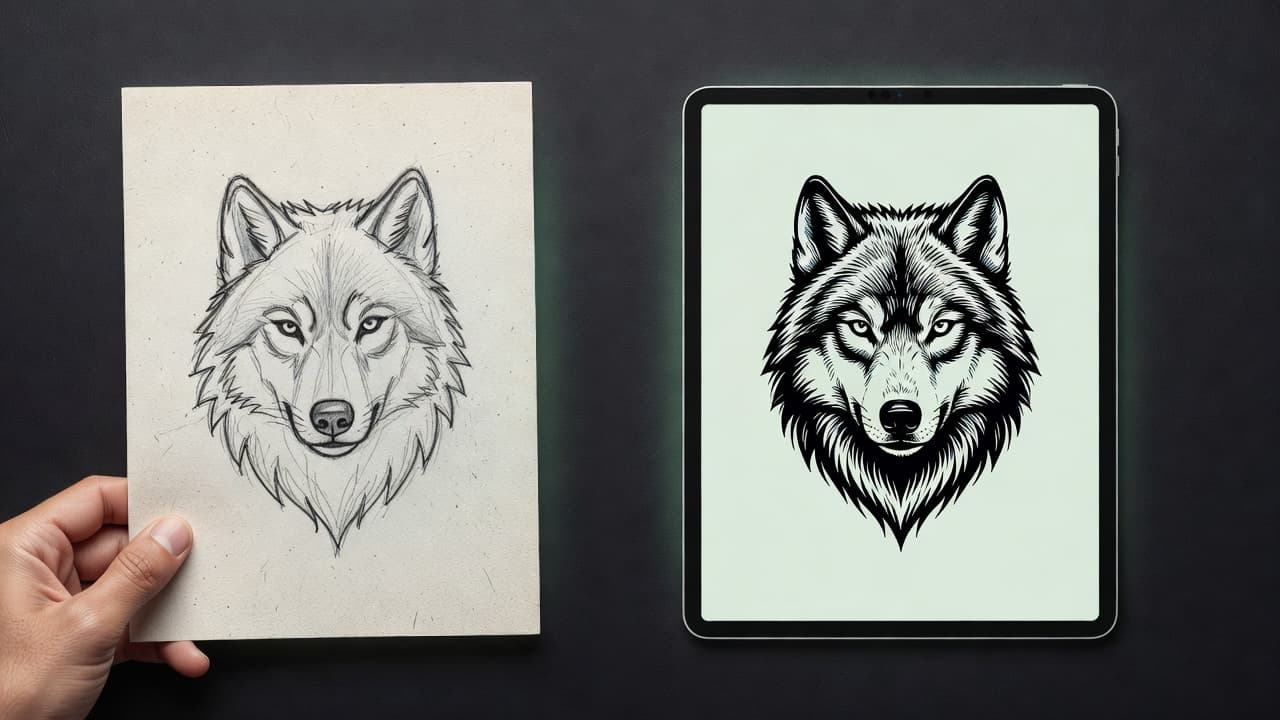
An AI tattoo generator from sketch takes a rough hand-drawn drawing — a doodle on paper, a pencil sketch in a notebook, a half-formed idea sketched during a boring meeting — and turns it into a polished, stencil-ready tattoo design in whatever style you choose. You are not starting from a blank text box or a finished photograph; you are starting from your own lines, and the AI builds on top of them.
In short: sketch-to-tattoo generation uses your drawing as the composition and lets you apply a finished art style on top of it, giving you far more control over layout than a text prompt while requiring none of the drawing skill a finished piece would normally need. This guide covers how it works, what makes a sketch usable, and how to turn a rough drawing into something you would actually bring to a tattoo artist.
What Is an AI Tattoo Generator From Sketch?
Most people who want a custom tattoo do not have a finished design in their head — they have a shape, a rough idea of where things go, or a doodle they scribbled on a napkin. An AI tattoo generator from sketch is built for exactly that stage. Instead of trying to describe your idea in words, which can lose detail in translation, or hunting for a reference photo that does not quite exist, you draw the basic idea and let the AI turn it into finished art.
This sits alongside two other common starting points for AI tattoo design: describing an idea with text-to-tattoo generation, and transforming an existing picture with photo-to-tattoo generation. Sketch-to-tattoo fills the gap between the two — you get more direct control over composition than a written prompt gives you, without needing a real photograph of the exact thing you want tattooed.
How Does Sketch-to-Tattoo AI Work?
The process is a straightforward loop: you provide the structure, the AI provides the finish, and you refine from there.
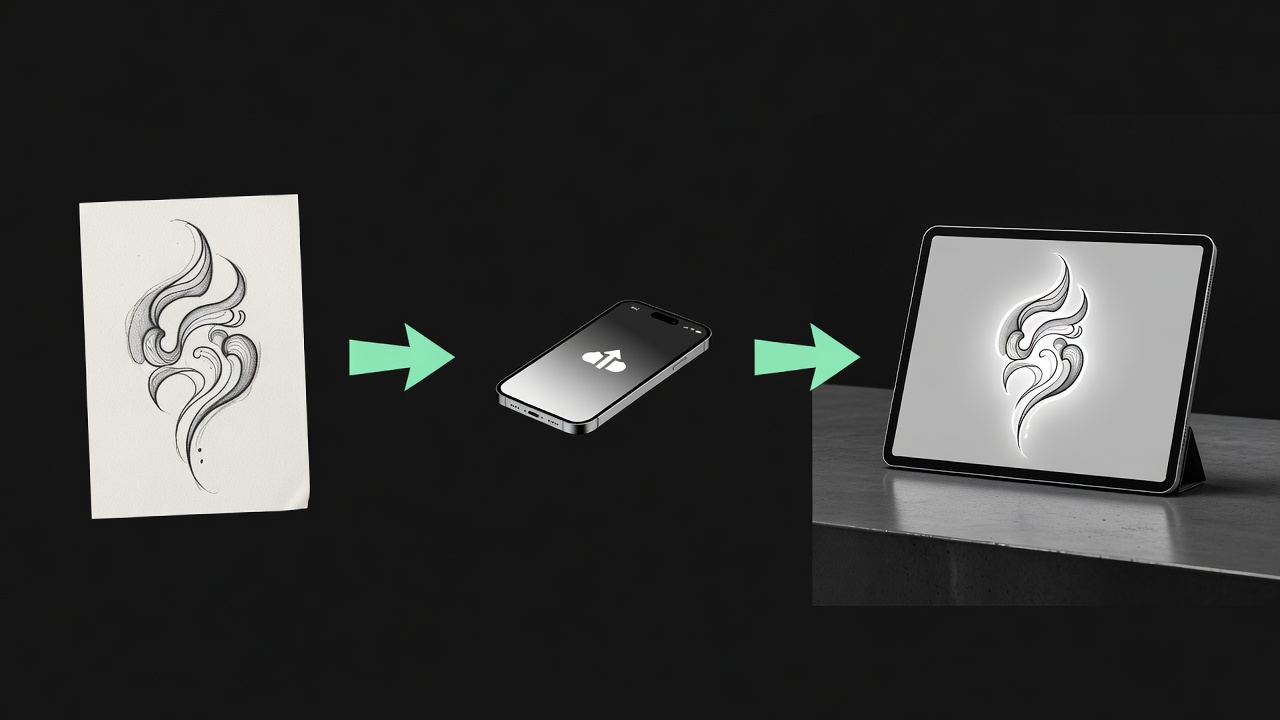
- Draw or find your sketch. Sketch your idea on paper or a tablet — even a rough one works, as long as the main shapes and composition are clear. A photo of a napkin drawing is fine.
- Upload the sketch. Upload a clear photo or scan of your drawing. Good lighting and a plain background around the sketch help the AI read the lines accurately.
- Choose a tattoo style. Pick the style you want the AI to render your sketch in — fine line, blackwork, Japanese, realism, geometric, watercolor, and more.
- Generate and compare. Generate a few variations and compare them side by side, keeping the composition you drew while letting the style change how it is rendered.
- Refine, preview, and export. Edit specific details, AR-preview the finished design on your body at real scale, then export a high-resolution file for your artist.
Technically, this is a form of image-to-image generation: the AI treats your sketch as a structural guide rather than a finished input, reworking it into a new, detailed image while preserving the underlying composition — a related idea to inpainting, where a model reworks part of an image while respecting what is already there.
What Kind of Sketches Work Best?
You do not need to be a good artist to get a good result — you need a sketch that clearly communicates the shapes and layout you want. A few things help:
- Clear main shapes. Confident outlines of the major elements — an animal's body, a flower's petals, a lettering layout — matter more than fine detail or shading.
- Correct proportions and placement. If two elements need to overlap or sit at a specific angle relative to each other, show that in the sketch rather than describing it separately.
- One clean version. A single legible drawing works better than a page covered in overlapping revisions and scratched-out lines — the AI will try to read everything on the page.
- Good lighting when you photograph it. Flat, even light and a plain background (a clean sheet of paper on a table) make it much easier for the AI to isolate the lines from shadows or texture.
- Simple is fine. A stick-figure-level sketch that clearly shows the pose and placement of a wolf howling at the moon is more useful than an ambitious drawing that is hard to make out.
Sketch, Text, or Photo: Which Should You Start With?
All three methods produce a finished tattoo design — the difference is what you're best at providing and how much control you want over the composition.
- Start with text when you have a clear idea in your head but no reference and don't want to draw — describing "a fierce lion with a geometric mane, forearm placement" is often faster than sketching it.
- Start with a photo when you already have the exact image you want translated — a pet, a portrait, a landscape you photographed yourself. Our photo-to-tattoo guide covers what makes a good source photo.
- Start with a sketch when you have a specific composition in mind that's hard to put into words — how two elements interlock, an unusual pose, a custom lettering layout — but no photo reference exists. Our text-to-tattoo guide covers prompt-writing if you want to combine a sketch with a written description for extra detail.
None of these are mutually exclusive. Plenty of people sketch a rough layout, generate from it, then add a text description on top to specify style, color, or mood the drawing alone couldn't capture.
Tips for Getting Great Results From a Rough Sketch
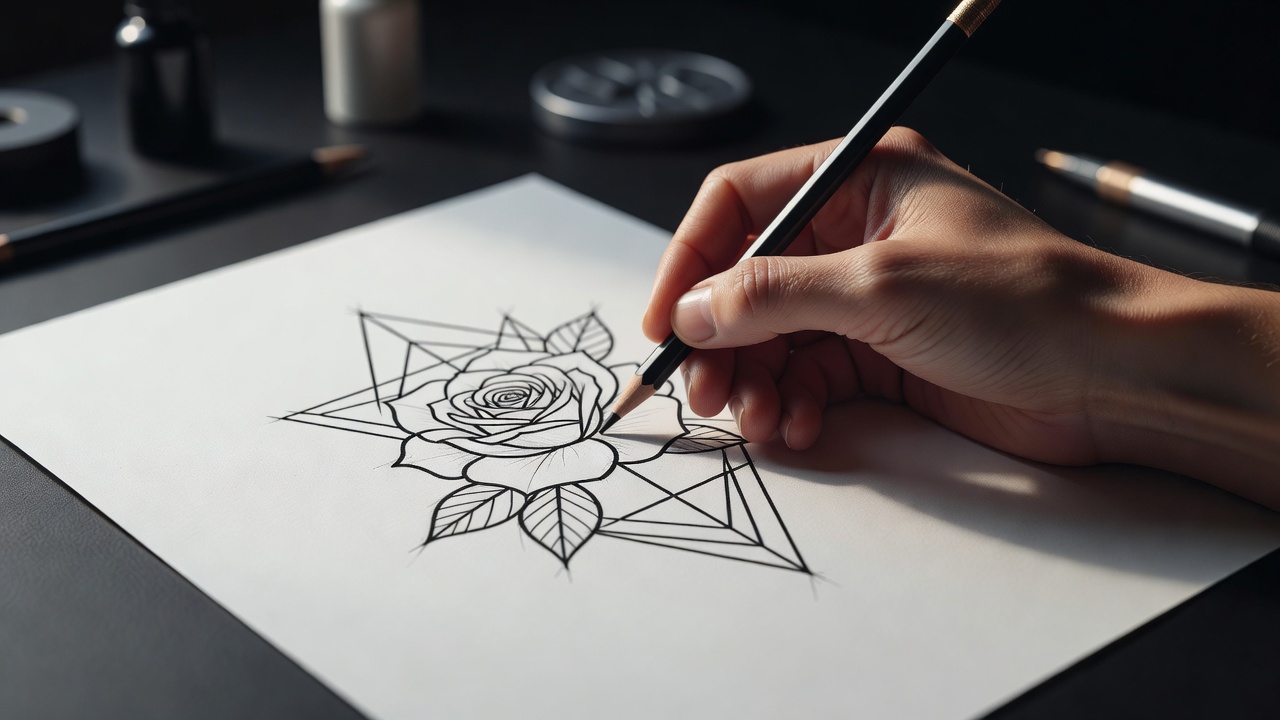
- Sketch at roughly the right proportions. If the final tattoo needs to be tall and narrow for a spine placement, draw it that way rather than as a square doodle.
- Label anything ambiguous. A small note like "this line continues behind the leaf" helps the AI resolve overlapping shapes correctly.
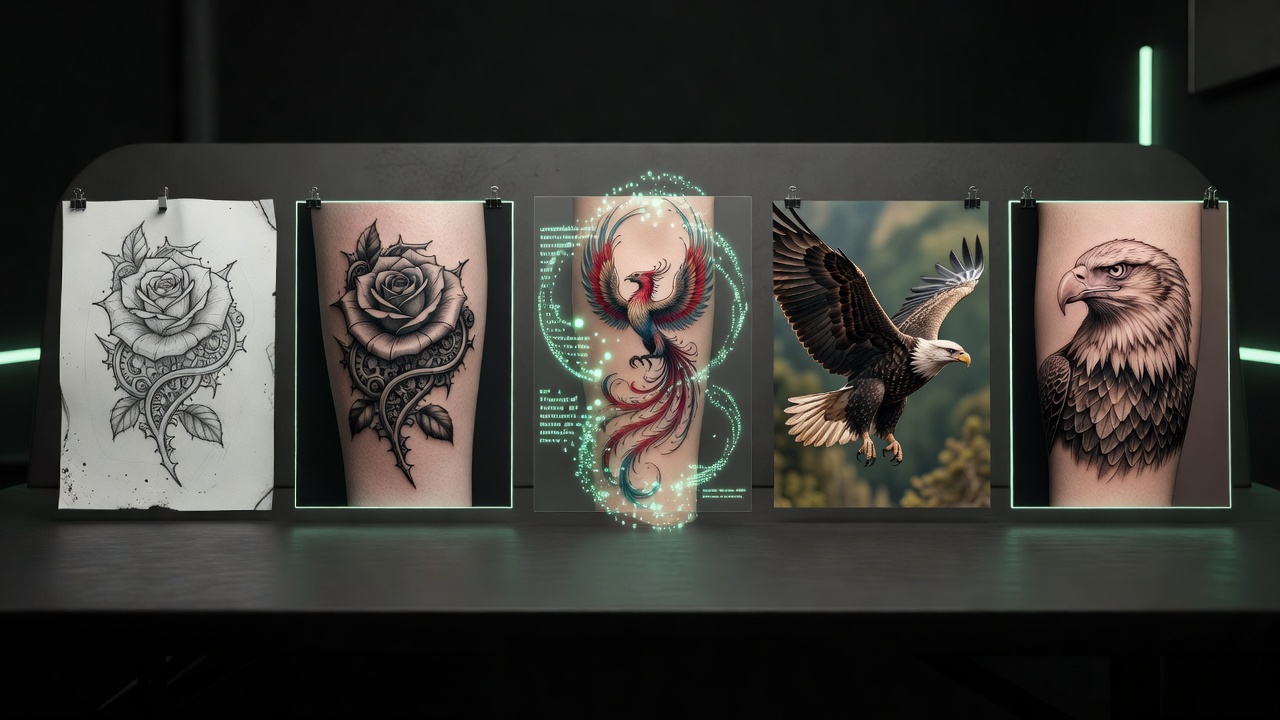
- Try more than one style pass. The same sketch can look completely different rendered as fine line versus blackwork versus Japanese-influenced shading — generate a few before settling on one.
- Don't over-explain in the sketch itself. Leave shading and fine texture to the AI and the style you choose; your job is composition, not finished art.
- Iterate instead of starting over. If a generation is close but not quite right, use an AI tattoo editor to adjust the specific element that's off rather than re-uploading a new sketch.
Refining and Previewing Your Sketch-Based Design
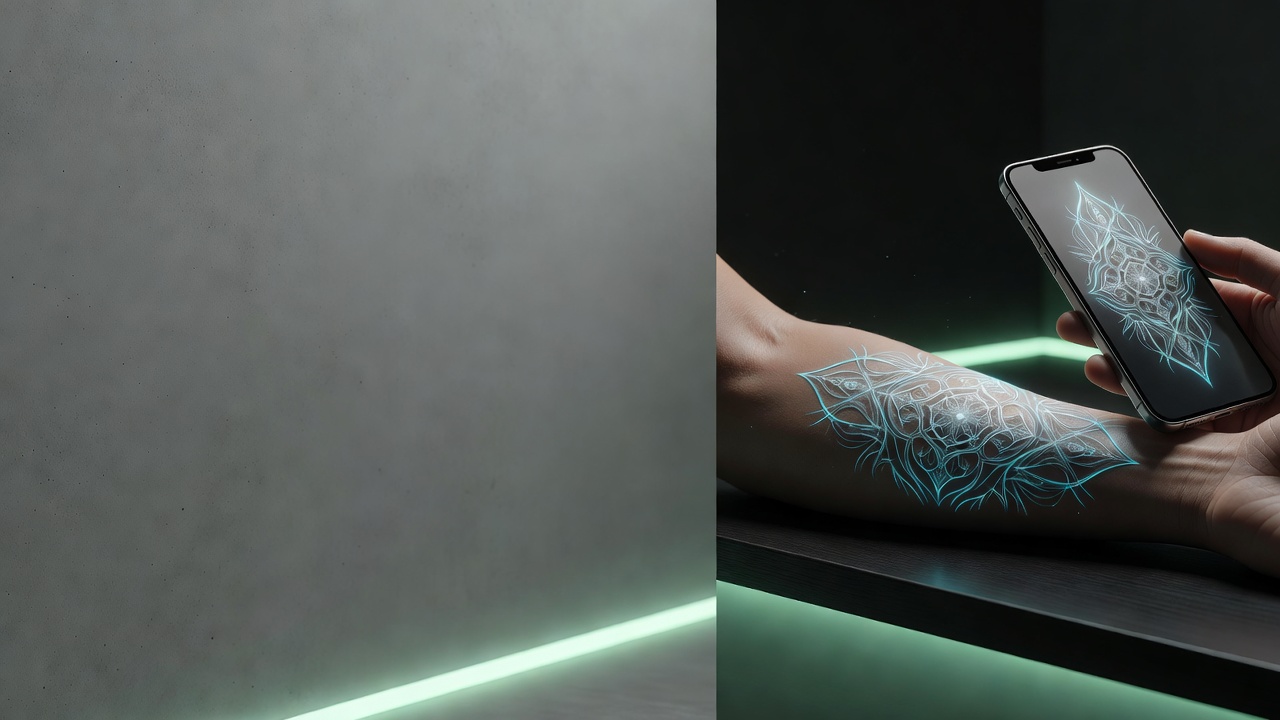
Your first generation from a sketch is a starting point, not a finished product. If the composition is right but the color, linework, or a specific detail is off, an AI tattoo editor lets you adjust that one thing without losing the layout your sketch established. Once you're happy with the design, AR try-on lets you preview it at real scale on your actual body before you commit to anything — a useful gut check, since a design that reads well as a flat image doesn't always sit the same way on a curved forearm or shoulder.
Turn Your Sketch Into a Tattoo With INK
Tattooing has always started with a drawing — flash sheets, stencils, and custom pieces all begin as lines on paper before they ever touch skin. An AI tattoo generator from sketch just shortens the distance between that first drawing and a design you can actually show an artist. With INK, you upload your sketch, choose a style, and generate multiple finished versions without needing to describe your idea perfectly in words or track down a photo that doesn't exist.
Because generation and editing are free to experiment with, you can try your sketch as bold blackwork and delicate fine line side by side, adjust individual details with the editor, and AR-preview the winner on your own skin before exporting anything. If this is your first time going through the whole process, our first tattoo guide walks through what happens after you have a finished design.
From Rough Sketch to Ready-to-Ink Design
You don't need to be able to draw well to start with a sketch — you need a drawing clear enough to show the AI what you have in mind. From there, style, refinement, and preview do the rest of the work.
What is an AI tattoo generator from sketch? A tool that turns a hand-drawn composition into a finished, styled tattoo design, giving you more direct control over layout than a text prompt.
Does the sketch need to be good? No — clear main shapes and proportions matter far more than drawing skill or shading.
How is it different from text or photo generation? You supply the composition through your own lines instead of describing it in words or transforming an existing photo.
What happens after generation? Refine specific details with an editor, AR-preview the design on your body, then export a high-resolution file for your tattoo artist.
Whatever is in that notebook or napkin sketch, it's a better starting point than you probably think. Upload it, see what comes back, and refine from there.
Turn Your Sketch Into a Tattoo Free
Upload your drawing, choose a style, and AR-preview the finished design on your body before you commit — all in INK. No sign-up needed.
Try INK Free →

Create Your Perfect Tattoo Design
Use AI to generate unique tattoo designs and preview them on your body before committing to ink.
Start Designing for FreeWritten by

Laura Schmitz
Tattoo Content Lead, INK
Laura Schmitz leads tattoo content at INK. She has spent years researching tattoo styles, symbolism and aftercare, and works directly with the AI tattoo generator to test how each style translates from prompt to skin — so every guide here reflects designs that are actually tattooable, not just images that look good on screen.
More about the author